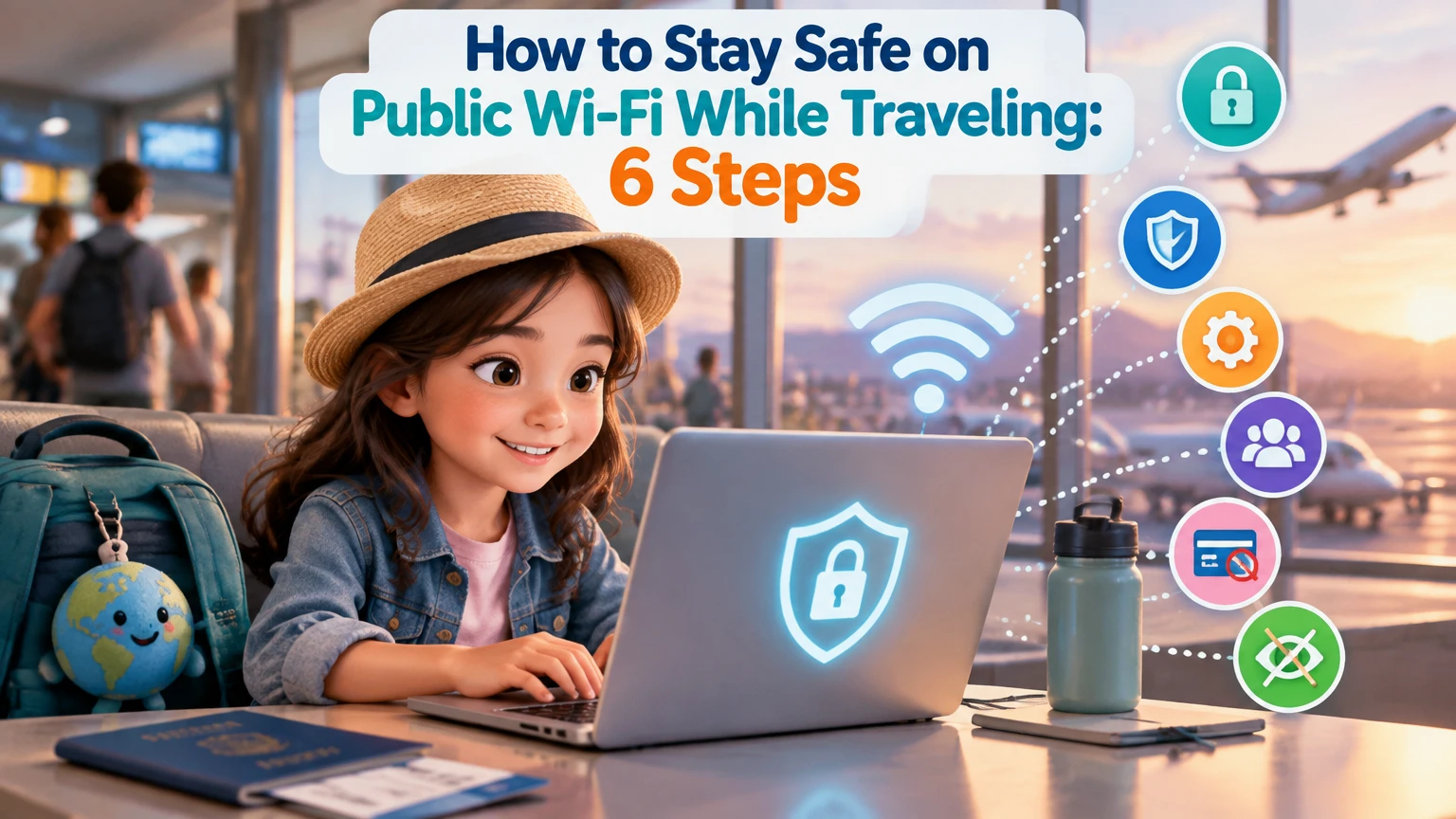
How to Stay Safe on Public Wi-Fi While Traveling: 6 Steps
To stay safe on public Wi-Fi while traveling, verify the network with staff, disable automatic connections and device sharing, use HTTPS and a reputable VPN, and prefer cellular data for sensitive tasks. Prepare updates, multifactor authentication, backups, and offline resources before departure. A secure routine takes about 5-10 minutes to configure.
Key Facts
Hotel Wi-Fi that uses a shared password is still a shared network, not a private home network.
HTTPS protects the contents of modern websites, but it does not hide your device from the local network or protect against phishing.
A VPN encrypts traffic between your device and the VPN server, but the VPN provider becomes able to observe connection metadata.
An eSIM or mobile hotspot bypasses the local Wi-Fi network and is usually the simplest option for banking and work accounts.
A kill switch can block internet access when a VPN tunnel fails, but users must verify that the feature works on their device.
Forgetting the network after use prevents your phone or laptop from reconnecting to a similarly named hotspot later.
What Makes Public Wi-Fi Risky?
Public Wi-Fi is risky because many unrelated devices share the same local network, while the network operator and nearby attackers may be able to observe connection metadata or target vulnerable devices. Modern HTTPS prevents routine reading of encrypted page contents, but it cannot make a fake hotspot, phishing page, infected device, or weak account password safe.
An open hotspot sends wireless traffic without a Wi-Fi encryption key. A hotel network with one password improves radio-layer protection against outsiders, but every guest who knows the password can still join the same logical network. WPA2 or WPA3 protects the wireless link; it does not automatically protect websites, apps, or accounts.
How do common attacks work?
A man-in-the-middle attack attempts to place an attacker between a device and its destination. Certificate validation and HTTPS normally prevent silent decryption, so a browser certificate warning is a serious stop signal rather than a minor inconvenience.
An evil twin is a rogue access point with a convincing name such as Airport_Free_WiFi or Hotel_Guest_5G. The attacker controls the connection and can redirect users to fake login pages, manipulate unencrypted traffic, or collect DNS requests.
Packet sniffing captures traffic on the local network. Attackers may see connection times, IP addresses, DNS activity, and unencrypted content, but correctly implemented HTTPS usually protects passwords and page contents from ordinary passive sniffing.
What can an attacker still learn through HTTPS?
HTTPS encrypts the URL path, page content, form data, and passwords in transit, but a local observer may still infer the destination domain, connection timing, data volume, and device presence. DNS encryption and a VPN can reduce some exposure, although neither makes browsing anonymous.
A padlock icon confirms an encrypted connection to a domain. It does not confirm that the domain is legitimate. airport-support-login.example can use valid HTTPS while remaining a phishing site, which is why users should open important services through a saved app or bookmarked address.
How to Prepare Devices Before Departure
Device preparation prevents more travel incidents than buying an expensive security product. Update the operating system and browser, enable full-device encryption and automatic locking, configure multifactor authentication, back up important files, and download maps, translation packs, boarding passes, and travel documents for offline use.
| Preparation | Typical setting or value | Why it matters | Check before departure |
|---|---|---|---|
| Screen lock | 30 seconds to 5 minutes | Limits access after loss | Lock and unlock each device |
| Operating system | Current supported version | Patches known flaws | Install updates and restart |
| Account MFA | Authenticator app or security key | Blocks many password-only takeovers | Test without relying on SMS |
| Device encryption | FileVault, BitLocker, iOS, Android encryption | Protects stored data | Confirm encryption is enabled |
| Backup | At least 1 recent offline or cloud copy | Enables recovery after loss | Open a test file |
| Offline data | Maps, tickets, translation, hotel address | Reduces unsafe connection use | Enable airplane mode and test |
Use a password manager with a strong master password and unique credentials for email, banking, and travel accounts. Email deserves special protection because password-reset links for other services usually arrive there.
Which settings should you change?
Turn off automatic Wi-Fi joining, automatic hotspot joining, network discovery, and file or printer sharing. On Apple devices, set AirDrop to “Receiving Off” or “Contacts Only”; on Android, disable Nearby Share when it is not needed. On Windows, mark unfamiliar networks as Public and disable network discovery.
Bluetooth does not make a Wi-Fi network safe or unsafe, but leaving discoverable Bluetooth enabled expands the device’s attack surface. Keep Bluetooth off unless a headset, tracker, keyboard, or other accessory requires it, and reject pairing prompts you did not initiate.
How to Stay Safe on Public Wi-Fi While Traveling
Use the following six-step process whenever you must connect to airport, hotel, restaurant, conference, or rental-property Wi-Fi. The routine takes approximately 30 seconds after initial preparation, while VPN, eSIM, or travel-router configuration usually takes 5-20 minutes.
Step 1: Prefer cellular data for sensitive activity
Use an eSIM, local SIM, roaming plan, or personal hotspot for banking, payroll, business administration, password changes, and confidential work. Cellular data bypasses the venue’s local Wi-Fi and removes the most common evil-twin and local-sniffing risks.
Typical travel eSIM prices range from $5-$50 per trip, depending on destination and data allowance. A 1 GB plan may support maps and messaging for several days, while video calls, cloud backups, and streaming can consume 1-3 GB per hour.
Success checkpoint: The device shows a carrier connection such as 4G, LTE, or 5G, and Wi-Fi is disabled.
Common mistake: Assuming an eSIM automatically gives unlimited or high-speed service. Check coverage, tethering rules, activation date, data expiry, and whether the phone is carrier-unlocked.
Step 2: Verify the exact network name
Ask an employee for the precise SSID and whether the venue uses a password or captive portal. Do not trust a familiar name, a strong signal, or a network containing the venue’s brand, because an attacker can copy all three.
Check spelling and punctuation. HotelGuest and Hotel-Guest, or Airport_Free and Airport_Free_WiFi, may be entirely different networks. Never accept a certificate warning or install a configuration profile merely because a portal requests it.
Success checkpoint: Staff confirmation matches the SSID exactly, and the connection does not request an unexpected app, certificate, browser extension, or operating-system profile.
Common mistake: Choosing the strongest signal. Signal strength indicates proximity, not legitimacy.
Step 3: Connect the VPN before opening sensitive apps
Install a reputable VPN application from the vendor’s official website or the Apple App Store or Google Play Store. Select automatic startup, enable the kill switch, and use a nearby server for lower latency unless a work service requires a particular country.
A VPN encrypts traffic from the device to the VPN endpoint. It does not protect against phishing, malware, malicious browser extensions, unsafe downloads, weak passwords, or an account that has already been compromised.
Success checkpoint: The VPN application reports an active tunnel, and a trusted IP-check page shows the VPN server’s address rather than the venue’s address.
Common mistake: Treating a free VPN as automatically trustworthy. Review its ownership, logging policy, business model, protocol support, independent audits, and permission requests. A VPN provider can observe metadata that the local Wi-Fi operator cannot.
Step 4: Confirm HTTPS and disable sharing
Open only addresses you recognize, preferably through a bookmark or official app. Confirm the browser displays HTTPS and a valid certificate, then keep file sharing, AirDrop, Nearby Share, network discovery, and printer sharing disabled.
HTTPS and a VPN provide different protections. HTTPS secures a browser session to one website; a VPN encrypts traffic across applications until it reaches the VPN provider. Neither verifies that a message, attachment, or login page is genuine.
Success checkpoint: No certificate warning appears, the connection profile is Public, and no device-sharing service is accepting inbound connections.
Common mistake: Logging into a lookalike site because the page has a padlock. Read the domain name, not only the security icon.
Step 5: Use the captive portal safely
If the venue requires terms acceptance or room-number login, temporarily disconnect the VPN, open a plain HTTP address such as http://neverssl.com to trigger the portal, and submit only the information the venue normally requires. Reconnect the VPN immediately after the portal grants access.
A captive portal is a network access page, not proof that the network is legitimate. Never enter an email password, banking credential, recovery code, or identity document into a portal that claims to need it for ordinary Wi-Fi access.
Success checkpoint: The venue’s portal confirms access, the VPN reconnects, and ordinary websites load over HTTPS.
Common mistake: Leaving the VPN disconnected while checking email or opening background applications. Pause automatic synchronization until the VPN is active again.
Step 6: Forget the network after use
Remove the network from saved Wi-Fi profiles when leaving the venue, especially for airports, convention centers, and hotel chains. A device configured to auto-join can connect later to a malicious hotspot using the same SSID.
On iPhone or iPad, open Wi-Fi settings, select the network, and choose “Forget This Network.” On Android, Windows, and macOS, use the saved-network list to remove the profile. Menu names vary by operating-system version.
Success checkpoint: The network no longer appears as an automatically joining profile.
Common mistake: Assuming disconnecting is enough. Disconnecting ends the current session, while forgetting removes the future auto-join behavior.
Which Connection Method Is Safest?
Cellular data through an eSIM, local SIM, or personal hotspot is usually the safest practical choice because it bypasses public Wi-Fi. A VPN is the best low-cost protection when Wi-Fi is unavoidable, while a travel router is useful for several devices but adds configuration and firmware responsibilities.
| Method | Typical cost | Setup time | Best security property | Main limitation |
|---|---|---|---|---|
| eSIM data plan | $5-$50 per trip | 5-10 minutes | Bypasses venue Wi-Fi | Data caps and phone compatibility |
| Local SIM | $10-$40 per trip | 10-30 minutes | Uses local carrier network | Physical installation and identity rules |
| Roaming plan | $10-$100 per trip | 1-5 minutes | Uses home carrier relationship | High prices or reduced speeds |
| Paid VPN | $3-$12 monthly on annual billing | 5-10 minutes | Encrypts traffic to VPN server | Does not stop phishing |
| Personal hotspot | Plan-dependent, often $0-$20 extra | 1-5 minutes | Private cellular connection | Drains battery and data |
| Travel router | $40-$130 hardware | 15-30 minutes initially | Centralizes Wi-Fi controls | Extra device and portal problems |
Is a travel router worth carrying?
A travel router is worth carrying when one traveler must connect several devices, especially a laptop, tablet, phone, streaming device, and work computer. The router can join hotel Wi-Fi once and create a separate WPA2 or WPA3 network, reducing repeated captive-portal logins.
A travel router does not transform an untrusted upstream connection into a trusted internet service. The router operator, hotel network, or upstream attacker may still affect the connection, and the router itself needs firmware updates, a unique administrator password, and a disabled remote-management feature.
When does a VPN help?
A VPN helps most when public Wi-Fi is unavoidable, when a device lacks cellular connectivity, or when a traveler wants to reduce local-network observation. It is less useful when the service blocks VPN traffic, when the VPN provider is untrustworthy, or when the real threat is phishing or malware.
Use a provider that publishes clear ownership and privacy information, supports modern protocols such as WireGuard or IKEv2, offers a kill switch for the relevant operating system, and has undergone meaningful independent security review. No VPN can promise perfect anonymity.
What does secure travel connectivity cost?
A basic setup can cost $5-$20 for an eSIM plus an existing VPN subscription. A multi-device setup with a travel router, eSIM, and VPN commonly costs $50-$180 before roaming charges, depending on hardware and data requirements.
| Traveler profile | Recommended setup | Typical trip cost | Reason |
|---|---|---|---|
| Occasional vacationer | eSIM plus existing VPN | $5-$50 | Simple phone-first protection |
| Budget backpacker | Local SIM or low-cost eSIM | $5-$30 | Avoids repeated café Wi-Fi |
| Business traveler | Corporate VPN plus hotspot or eSIM | $20-$100 | Supports work access and calls |
| Family with many devices | Travel router plus cellular plan | $60-$180 | One connection for several devices |
| Remote worker | Cellular primary, VPN fallback, router optional | $30-$180 | Reduces dependence on unstable portals |
Can You Bank Safely on Public Wi-Fi?
Banking on public Wi-Fi is avoidable rather than automatically impossible. Use cellular data whenever possible; if public Wi-Fi is the only option, combine a verified SSID, a trusted VPN with an active kill switch, the official banking app or manually entered domain, multifactor authentication, and a check of account alerts afterward.
A VPN does not make a fraudulent banking page safe. Never approve an unexpected multifactor prompt, disclose a one-time code to a caller or chat agent, or install a security application requested by a Wi-Fi portal. Financial institutions commonly use device and location signals, so a sudden foreign login may trigger verification even when the connection is legitimate.
If a financial task can wait, delay it until cellular service or a trusted private connection is available. Convenience is a poor reason to increase exposure around a high-value account.
How Should Business Travelers Secure Work Devices?
Business travelers should use the employer’s approved VPN, endpoint protection, device-management controls, and remote-access process rather than substituting a personal VPN. Corporate security teams may require device certificates, DNS filtering, conditional access, or a specific VPN gateway that a consumer service cannot replace.
Never connect an unmanaged personal laptop to a sensitive corporate system merely because a hotel network requires a login. Ask the employer whether split tunneling is permitted, whether removable media is blocked, and what to do if the laptop is lost or seized at a border.
A practical business configuration is cellular data as the default, the corporate VPN active before accessing internal resources, automatic screen locking at five minutes or less, and no local storage of unnecessary customer or company data.
What If the VPN or Wi-Fi Fails?
A failed connection should trigger a fallback plan, not repeated attempts on increasingly suspicious networks. Use cellular data first, then troubleshoot the captive portal, VPN protocol, DNS behavior, and device network profile in that order.
| Failure | Safe response | Avoid |
|---|---|---|
| Portal will not open | Pause VPN, visit a plain HTTP trigger page, reconnect VPN | Entering credentials into pop-up pages |
| VPN will not connect | Change protocol or nearby server, then use cellular data | Disabling security permanently |
| VPN drops repeatedly | Confirm kill switch blocks traffic and update app | Continuing sensitive work unprotected |
| Network asks for a certificate | Cancel and ask venue staff | Installing an unknown certificate |
| DNS errors appear | Restart connection, verify VPN DNS, use cellular data | Downloading random “fix” software |
| Hotel Wi-Fi blocks work VPN | Use corporate-approved fallback or hotspot | Circumventing company controls without approval |
If the network requires a device certificate, browser extension, “security scanner,” or configuration profile, stop and verify the request through an official venue channel. Ordinary guest Wi-Fi normally needs a portal login, not administrator-level access to the device.
What Should You Do After Using a Suspicious Network?
Disconnect immediately, forget the network, and switch to cellular data. If you entered a password on a suspicious page, change it from a trusted device, revoke active sessions, confirm multifactor settings, and inspect recent account activity.
For a work device, notify the security team rather than trying to clean the system yourself. Preserve useful details such as the SSID, location, time, portal address, certificate warning, and screenshots.
| Possible exposure | Immediate action | Follow-up timeframe |
|---|---|---|
| Connected but entered no credentials | Forget network and monitor device | Same day |
| Entered an account password | Change password and revoke sessions | Immediately |
| Approved an unexpected MFA prompt | Contact account provider or employer | Immediately |
| Installed a profile or certificate | Disconnect and seek technical review | Immediately |
| Downloaded and opened a suspicious file | Isolate device and contact IT | Immediately |
| Banking details submitted | Contact bank and monitor transactions | Immediately |
After the trip, review saved networks, remove temporary eSIMs when the plan ends, update devices, and inspect email forwarding rules and account recovery options. Attackers who obtain email access may remain quiet while preparing a later takeover.
Device-Specific Security Checklist
iPhone and iPad users should keep iOS current, disable automatic joining for unknown networks, restrict AirDrop, use Lockdown Mode only when the threat model warrants its feature trade-offs, and review installed profiles under device-management settings.
Android users should update Google Play system components, disable automatic Wi-Fi joining, review Nearby Share visibility, keep Google Play Protect enabled, and check whether an unfamiliar VPN or private DNS profile was added.
Mac users should enable FileVault, keep the firewall active, set unfamiliar networks to trusted only when appropriate, and review Login Items, VPN profiles, and sharing settings. Windows users should select the Public network profile, keep Microsoft Defender active, disable network discovery, and confirm BitLocker status.
| Device | Setting to verify | Typical menu area |
|---|---|---|
| iPhone | Auto-Join, AirDrop, VPN profile | Settings, Wi-Fi and General |
| Android | Auto-connect, Nearby Share, Private DNS | Settings, Network and connected devices |
| Mac | FileVault, Firewall, Sharing | System Settings, Privacy and Security |
| Windows | Public profile, Defender, Discovery | Settings, Network and Windows Security |
Menu names change between versions, so search the operating system’s settings rather than following an old screenshot. The security outcome matters more than a particular menu path.
Common Mistakes That Reduce Protection
The most damaging mistake is confusing network security with account security. A VPN can encrypt the route to its server, but it cannot stop a traveler from entering credentials into a fake login page or approving an attacker’s MFA request.
A second mistake is using a shared hotel password as proof of privacy. Shared credentials identify guests to the access point, but they do not create an isolated personal network in the way a private home WPA3 network often does.
A third mistake is installing random VPN applications after arriving. Preparation avoids rushed decisions, unverified app stores, misleading “free Wi-Fi security” tools, and portals that request excessive permissions.
A fourth mistake is ignoring battery and data constraints. A phone running a hotspot, VPN, navigation, and video call may drain its battery within several hours, so carry a power bank and download essential content offline.
FAQ
Does a password-protected hotel network count as private Wi-Fi?
No. A hotel network using a room number or shared password remains a shared guest network. The password may encrypt the wireless link, but many unrelated guests still share the network, and the hotel controls the access infrastructure. Use HTTPS, disable sharing, and prefer cellular data for sensitive activity.
Is public Wi-Fi safe with a VPN?
Public Wi-Fi is safer with a reputable VPN, but the VPN does not eliminate every threat. It encrypts traffic between the device and VPN server, while phishing, malware, fake websites, unsafe downloads, account takeover, and VPN-provider logging remain possible. Keep HTTPS and normal account-security practices active.
Should I turn off Wi-Fi completely while traveling?
Turn off Wi-Fi when it is not needed, especially near airports, conferences, and dense hotel areas where copied SSIDs are plausible. Disabling Wi-Fi prevents automatic joining and saves battery. Cellular data is preferable for sensitive tasks, while verified Wi-Fi remains useful for large downloads when configured safely.
Can an iPhone or Android phone be hacked through public Wi-Fi?
A phone can be targeted through vulnerable software, malicious links, unsafe profiles, or deceptive portals, but current updates and correct HTTPS significantly reduce ordinary network attacks. Keep the operating system updated, reject unknown certificates and profiles, disable automatic joining, and install apps only from official stores.
Is a free VPN good enough for travel?
A free VPN may be adequate for occasional low-risk browsing only when its provider has a credible privacy model, clear ownership, and suitable security controls. Some free services monetize through advertising, data collection, or restrictive limits. For banking, work, and frequent travel, evaluate the provider rather than choosing solely by price.
What is the safest way to use airport Wi-Fi?
Use cellular data first. If airport Wi-Fi is necessary, confirm the SSID with airport staff, disable automatic joining and sharing, connect the VPN before browsing, use only HTTPS sites, avoid financial tasks, and forget the network when leaving. Do not install certificates or software requested by a captive portal.
The Bottom Line
The safest answer to How to Stay Safe on Public Wi-Fi While Traveling is to avoid public Wi-Fi for sensitive activity by using an eSIM, local SIM, roaming plan, or personal hotspot. When Wi-Fi is unavoidable, verify the SSID, disable automatic connections and sharing, activate a reputable VPN, confirm HTTPS, reject certificate warnings, and forget the network afterward.
A VPN reduces local-network exposure, but it is not a substitute for phishing awareness, software updates, multifactor authentication, device encryption, or careful account behavior. Prepare before departure, keep cellular data as the fallback, and treat every shared network as untrusted.